
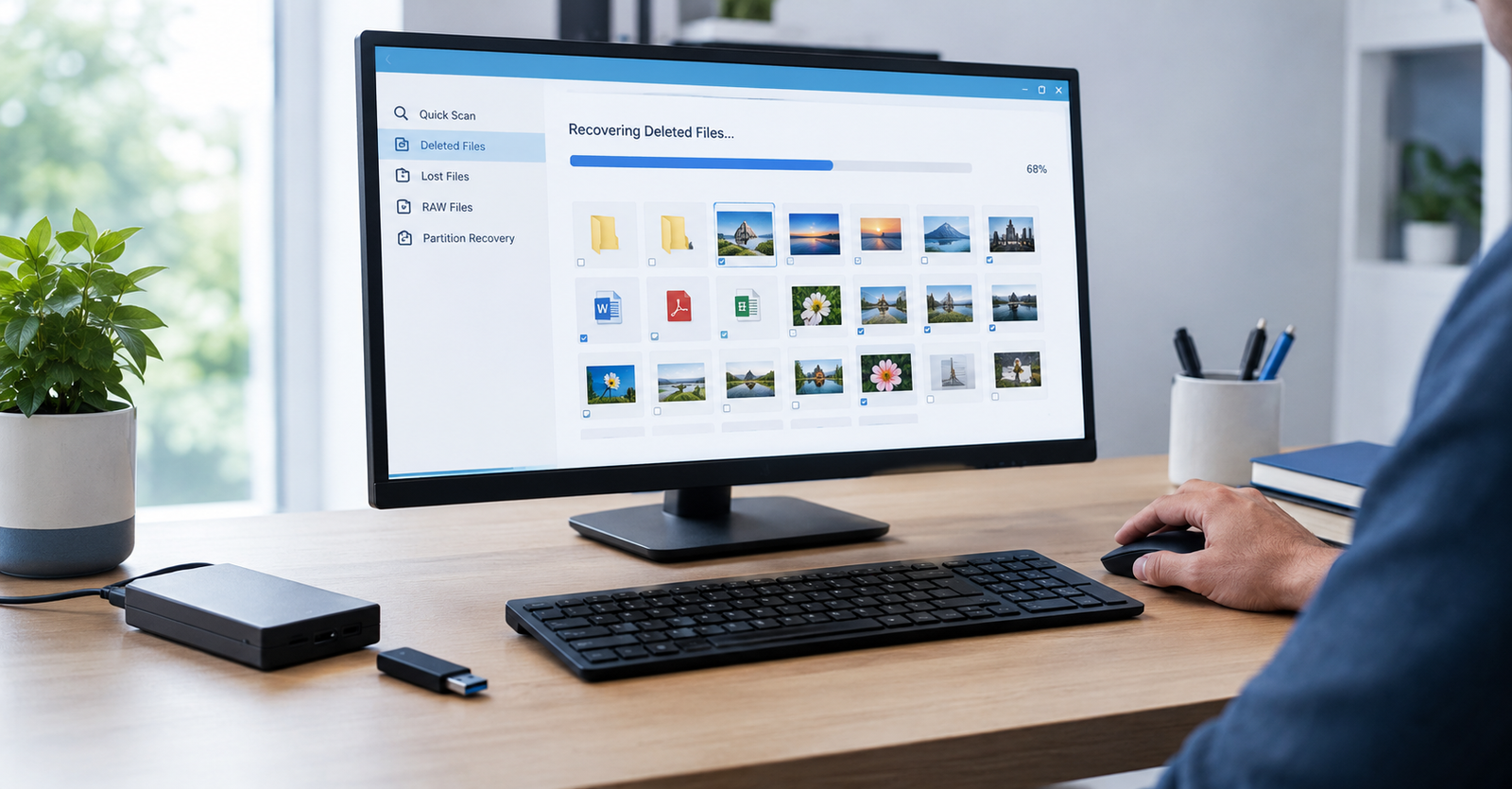
You can often recover accidentally deleted files by checking the Recycle Bin or Trash first, then restoring from a backup or file history, and finally using recovery software. Stop saving new data immediately, because overwritten files are much harder to get back.
Almost everyone deletes the wrong file at some point. The good news is that a deleted file is rarely gone the moment it disappears, and quick action improves your odds. This guide explains what happens when a file is deleted, the order to try recovery methods in, when deleted file recovery is better left to professionals, and how to protect your files in the future.
Key Takeaways
- Stop using the drive straight away so deleted data is not overwritten.
- Check the Recycle Bin, Trash, and cloud storage before anything else.
- Backups and file history are the most reliable ways to get files back.
- Recovery software works best when it is installed on a different drive.
- Damaged drives or critical files call for a professional.
What Happens When You Delete a File?
When you delete a file, the system usually removes its entry from the file index and marks the space as available. The data itself often stays on the drive until new files overwrite it. That is why deleted file recovery is possible, and why speed matters.
On SSDs, a feature called TRIM can clear that space sooner, which lowers the chances of getting files back.
How Can You Recover Accidentally Deleted Files Step by Step?
Work through these methods in order, from the simplest to the most technical, stopping once your files return:
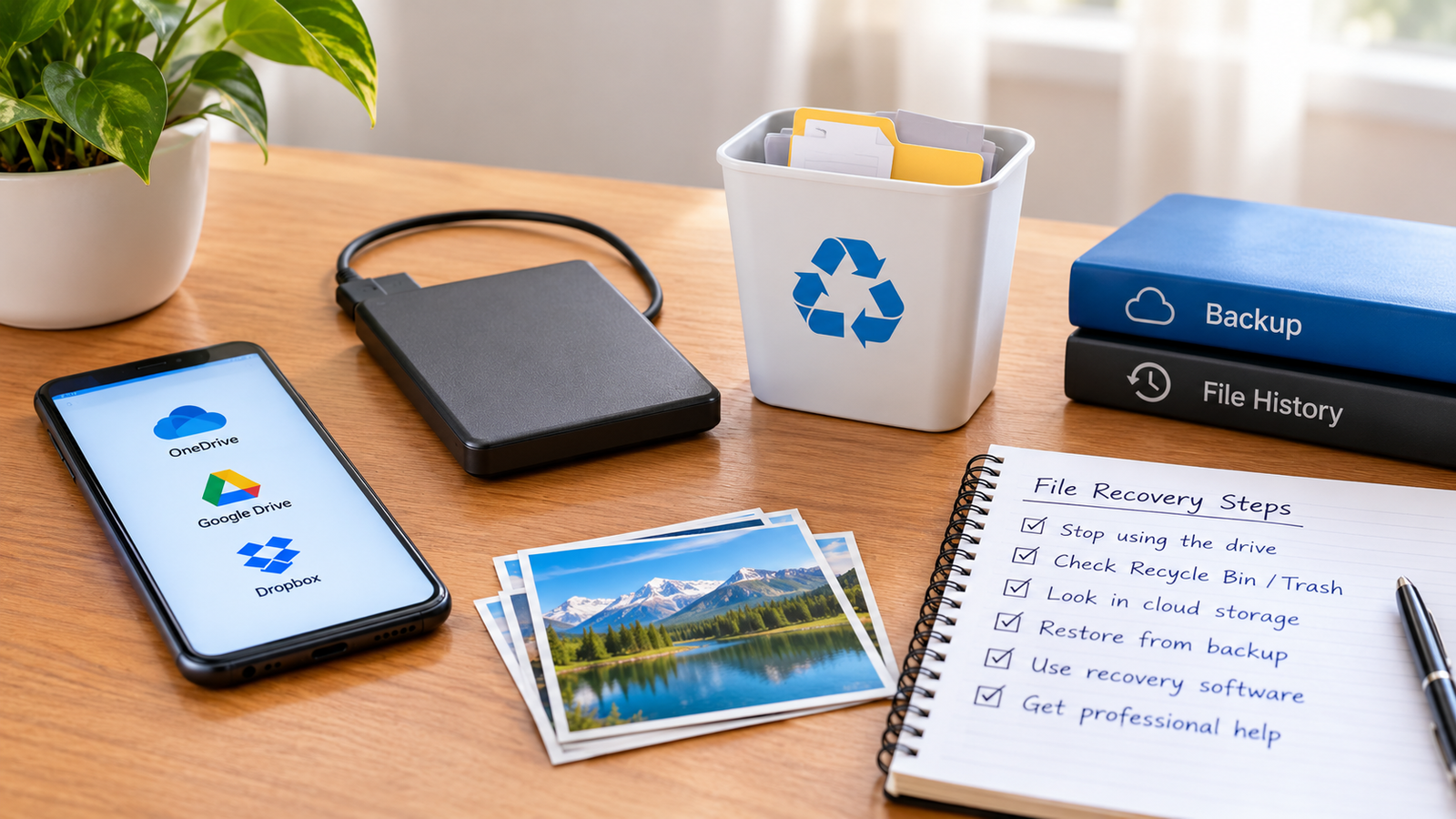
Step 1: Stop using the drive – Do not save, install, or download anything before completing your task.
Step 2: Try Undo – Press Ctrl+Z in File Explorer or Command+Z in Finder immediately after deletion.
Step 3: Check the Recycle Bin or Trash – Right-click on the file and select Restore or Put Back (on Mac).
Step 4: Look in cloud storage – Deleted files are stored in a temporary trash bin by OneDrive, Google Drive, and Dropbox.
Step 5: Restore from a backup – In order to retrieve lost documents from a previous version, one may use File History on Windows or Time Machine on a Mac computer.
Step 6: Use recovery software – Search the hard drive for those files that remain intact, as described below.
On Windows, you can also right-click the folder that held the file and choose Restore previous versions, if File History or restore points were switched on.
Which Recovery Method Fits Your Situation?
The right starting point depends on how the file was lost and the condition of the drive.
Use the table below to find your situation and see the best first move.
| Situation | Best First Move |
| File deleted a moment ago | Undo, then check the Recycle Bin or Trash |
| Recycle Bin or Trash already emptied | Check backups, then recovery software |
| Deleted from a USB drive or memory card | Recovery software, since these skip the Recycle Bin |
| Drive formatted or showing errors | Stop using it, then ask a professional if the files matter |
| Drive clicking or not detected | Professional service |
How Do You Use Recovery Software Safely?
Reputable Data Transfer and Recovery service tools scan the drive for files that are still intact. On Windows, Microsoft also offers a free command-line option called Windows File Recovery. Follow these rules with any tool:
- Install it on a different drive from the one that held your files.
- Save recovered files to a separate drive, never back to the original.
- Download only from the official website, since fake tools can carry malware.
- Expect partial results, because file names may be lost and some files may not open.
Which Mistakes Make Recovery Harder?
Some well-meant fixes make things worse, so avoid these until your files are recovered:
- Running disk repair tools such as CHKDSK before recovering the files.
- Formatting the drive or reinstalling Windows on it.
- Defragmenting a drive that has lost files.
- Using cleaning tools that wipe temporary files and free up space.
When Should You Use a File Recovery Service?
Choose a professional if the drive makes clicking or grinding sounds, is not detected, has been formatted, or holds files you cannot afford to lose. Water damage and physical knocks also call for expert handling. Every extra attempt at home can lower the odds, so stopping early protects your options.
Tell the technician what you did after the deletion, since that helps them judge how much may still be recoverable.
How Can You Protect Your Files in the Future?
A few simple habits can save you from going through this again. Put these in place now, before the next accidental deletion happens.
- Keep three copies of important files on two types of storage, with one stored offsite or in the cloud.
- Turn on File History on Windows or Time Machine on a Mac.
- Sync key folders such as Documents and Desktop to cloud storage.
- Pause before emptying the Recycle Bin or Trash, and check what is inside.
Conclusion
The first rule of recovering lost files is to be quick, remain calm, and do not save any new files to the drive where you lost the files. The easiest things to try first are Undo, Recycle Bin/Trash, or cloud storage. If this doesn’t work, use a backup, File History, or Time Machine to restore the files before trying anything else.
Use recovery software carefully, and only when really needed, installing it on a different drive and saving all recovered files elsewhere. If the files matter and the drive is damaged or the earlier steps fail, the team at William’s PC Repair can assess the situation and advise on the safest recovery route.
FAQs
Can you recover files after emptying the Recycle Bin?
Often yes, if the space has not been overwritten. Check backups first, then try recovery software on a different drive. The sooner you start, the better your chances of success.
Can data recovery work on a dead hard drive?
Sometimes. A drive that is not detected may have a failed circuit board, damaged heads, or corrupted data. Avoid powering it on repeatedly, and ask a professional to assess it.
How long do deleted files stay in the Recycle Bin?
Items stay until you empty the bin, it reaches its size limit, or Storage Sense clears it. On a Mac, they stay until you empty the Trash or enable automatic removal.
Can overwritten files be recovered?
Rarely. Once new data replaces the old, normal tools cannot recover deleted files. Backups, cloud version history, and Windows Previous Versions are your best chance, so check those first.
How much does a file recovery service cost?
Costs vary widely with the damage, the drive type, and how much data is involved. A reliable provider should explain what is recoverable and give a quote before starting work.
Lost an Important File?
Stop and get expert advice before you try more fixes. Contact our team today for careful assessment, honest guidance, and dependable help getting your files back.