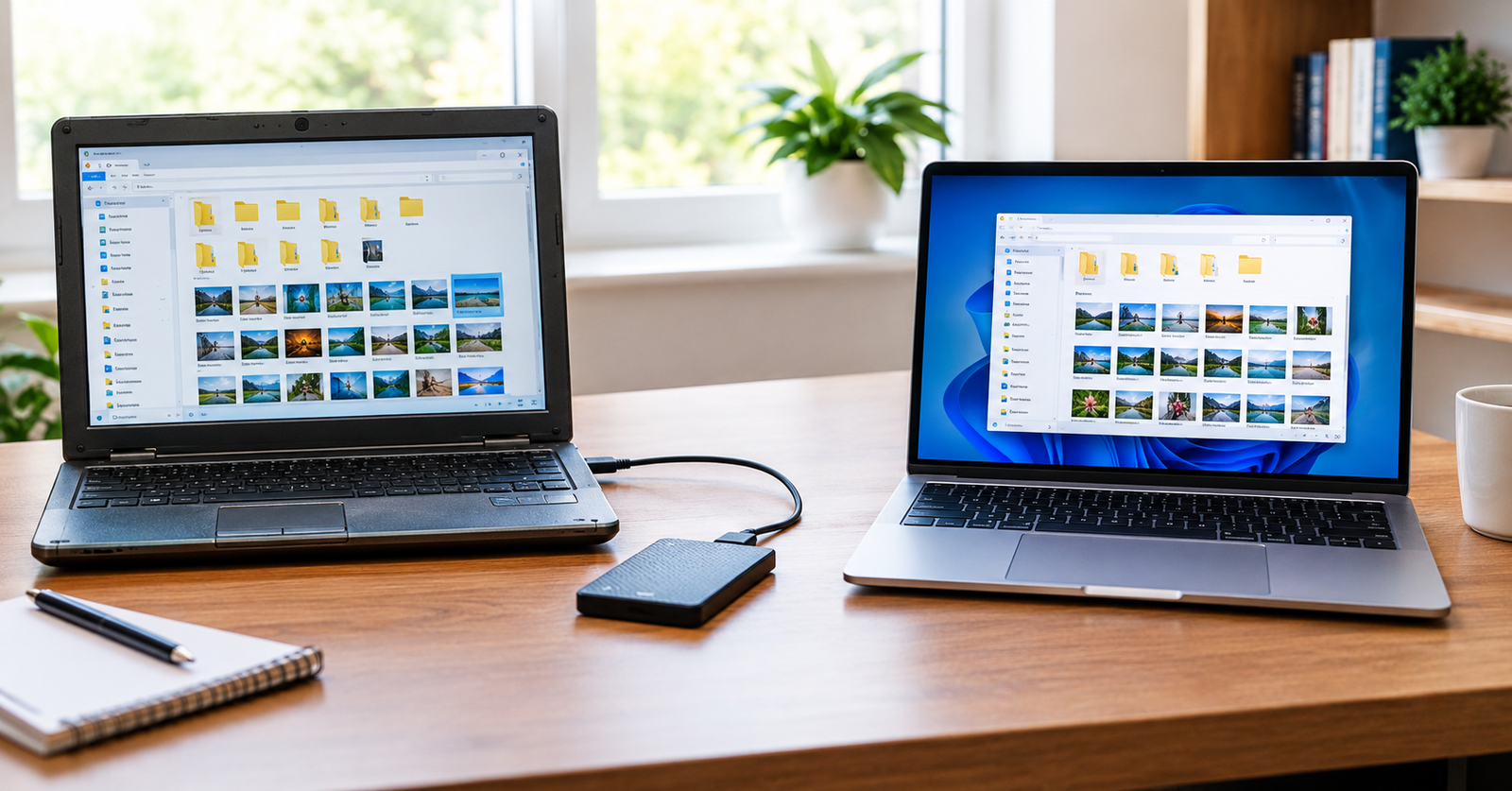
The easiest way to transfer data from old computer to new computer is to back up your files first, then move them using an external drive, cloud storage, or a built-in transfer tool. Keep the old PC switched on and untouched until you have confirmed that everything has arrived safely.
A new machine is exciting, but moving your life across can feel stressful. This guide explains what you can and cannot move, the order to follow, which computer data transfer method suits your situation, when to call a professional, and how to avoid losing files during computer migration.
Key Takeaways
- Back up your old PC before you move or change anything.
- Files, photos, and settings transfer easily, but most programs must be reinstalled.
- External drives, cloud storage, and built-in tools are the safest ways to transfer files to new PC.
- Keep the old computer until you have checked every folder on the new one.
- Failing drives or business data call for a professional.
What Can You Transfer From an Old PC to a New PC?
Most personal data moves across without trouble. This includes documents, photos, music, videos, browser bookmarks, email data, and many settings. Programs are different, because they are tied to the system and usually need a fresh install on the new machine.
Licences and sign-ins also need attention. Software such as Microsoft Office, Adobe tools, and antivirus products may require you to sign out on the old computer and sign in again on the new one.
How Do You Transfer Data From an Old Computer to a New One?
Follow these steps in order, from preparing the old computer to checking the new one, before wiping anything:
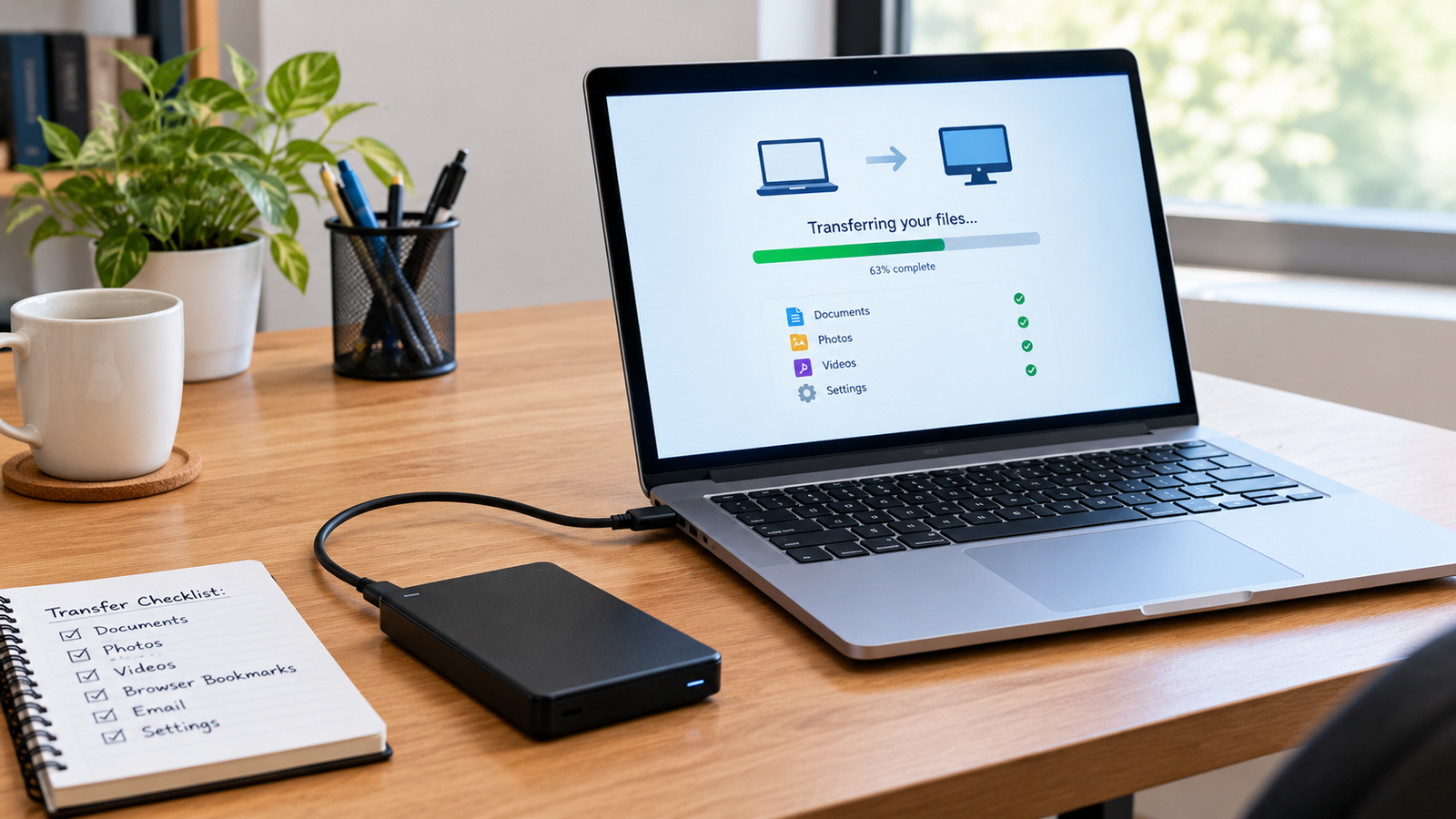
Step 1: Make a list of what you need –Note your folders, programs, licence keys, saved passwords, and email accounts so nothing is forgotten.
Step 2: Back up the old computer – Copy your important files to an external drive or cloud storage as a safety copy before you start.
Step 3: Clean up before you move – Delete duplicates, old downloads, and files you no longer need so the transfer is faster.
Step 4: Choose your transfer method – Pick an external drive, cloud storage, a transfer cable, a network transfer, or a built-in tool such as the Windows Backup app or Migration Assistant on a Mac.
Step 5: Move your files and settings – Copy Documents, Pictures, Music, Videos, and Desktop folders first, then browser data and email.
Step 6: Reinstall your programs – Download the latest versions from the official websites and sign in with your licence details.
Step 7: Check everything on the new PC – Open files, test your programs, and confirm that photos and email are all present before you retire the old computer.
What Is the Best Transfer Method for Your Setup?
The best computer Data Transfer and Recovery service method depends on how much data you have and the condition of your old PC.
Use the table below to find your situation and see the best first move.
| Situation | Best First Move |
| A few folders and documents | Cloud storage or a USB flash drive |
| Large photo, music, or video collection | External hard drive or SSD |
| Both computers on the same network | Network transfer or shared folder |
| Windows PC to Windows PC with settings | Windows Backup app with your Microsoft account |
| Old Mac to new Mac | Migration Assistant |
| Windows PC to Mac | Apple’s Windows Migration Assistant or an external drive |
| Old computer will not start | Professional service or drive removal |
What Should You Check Before Switching Off the Old PC?
Run through this list before you reset, sell, or recycle the old computer:
- Confirm that all your important folders are on the new PC and open correctly.
- Export browser bookmarks and make sure password manager data is synced.
- Sign out of programs that limit installations, such as Office and Adobe tools.
- Save any BitLocker or encryption recovery keys.
- Keep your backup copy for a few weeks, just in case.
What Common Errors Cause Files to Go Missing?
Some shortcuts cause lost files, so avoid these mistakes when moving to a new PC:
- Wiping or resetting the old computer before checking the new one.
- Skipping a backup because the transfer seems simple.
- Copying only the Documents folder and forgetting Desktop, Downloads, and AppData.
- Trying to copy installed program folders instead of reinstalling the software.
- Using unknown transfer tools or cables from untrusted websites and sellers.
When Is It Time to Call in an Expert?
Choose a professional if the old computer will not start, the drive is making unusual noises, or the files hold business or financial records you cannot afford to lose. Large amounts of data, several user accounts, and specialist software also make a do-it-yourself move risky.
A technician can transfer your files, settings, and programs safely, and can check that nothing has been missed. Tell them which method you have already tried, since that helps them avoid repeating steps.
How Can You Make the Next Upgrade Easier?
Put these simple habits in place today, so your next computer upgrade or move takes only minutes rather than days.
- Keep three copies of important files on two types of storage, with one stored offsite or in the cloud.
- Turn on File History or Windows Backup on Windows, or Time Machine on a Mac.
- Sync key folders such as Documents, Desktop, and Pictures to cloud storage.
- Keep a record of your licence keys and software accounts.
Final Thoughts
The best way to transfer data from an old computer to a new computer is to plan ahead, back everything up, and move your files before touching anything else. Start with documents, photos, and browser data, then sign in to your accounts and reinstall your programs. Check every folder on the new PC carefully, and keep the old one untouched until you are completely sure nothing is missing.
If the move involves large amounts of data, a damaged drive, or business software, the team at William’s PC Repair can handle the computer migration safely and advise on the best approach for your setup, so you start on the new PC with nothing missing and no unwelcome surprises.
FAQs
Can you transfer programs from an old computer to a new one?
Usually not by copying them. Most programs must be reinstalled on the new PC using the official installer and your licence details. Some third-party migration tools can help, but results vary.
How long does it take to transfer data from an old computer to a new one?
A small set of documents can move in minutes, while hundreds of gigabytes of photos and videos may take several hours. Wired methods and external drives are usually faster than Wi-Fi or cloud uploads.
Is it safe to use cloud storage to transfer files to a new PC?
Yes, if you use a strong password and two-factor authentication. Check your storage limit and upload speed first, because large collections can take a long time to upload and download.
Should you wipe the old computer after the transfer?
Yes, but only after you have checked that everything is on the new PC and your backup is safe. Sign out of your accounts and programs first, then reset the old computer properly.
How much does a computer migration service cost?
Costs vary with the amount of data, the number of computers, and the condition of the old drive. A reliable provider should explain the process and give a quote before starting work.
Ready to Set Up Your New Computer?
Skip the stress and get expert help before you start. Contact our team today for careful data transfer, honest guidance, and dependable support to get you settled on your new computer.